

- Custom Variable Widget
- Priority Matrix
- Heatmap Widget
- Grid Widget
- Weighted mean widget
- Comment List widget
- Widget Filters
- Ranking List Widget
- Distribution Chart
- NPS Widget
- Trend Widget
- Word Cloud Widget
- Cross tab widget
- KPI Comparison Widget
- Bubble chart
- Custom Metric Trend Chart
- Trend Comparison Widget

Mobile Intercept Settings
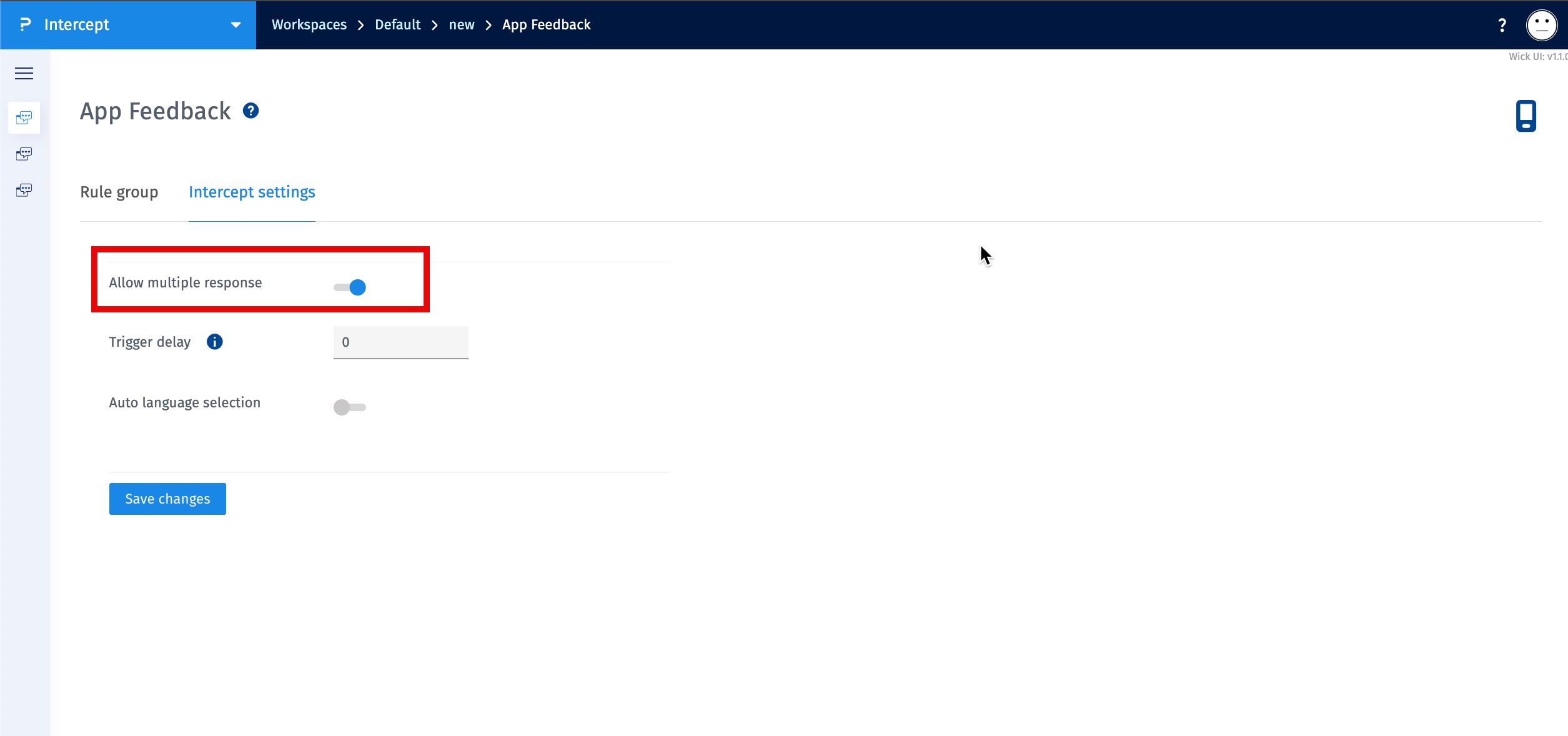
The Allow Multiple Responses setting lets you control whether visitors can respond to the intercept more than once.
- Go to the Intercept Settings tab for your intercept
- Toggle the Allow Multiple Responses switch to ON
- Click Save Changes
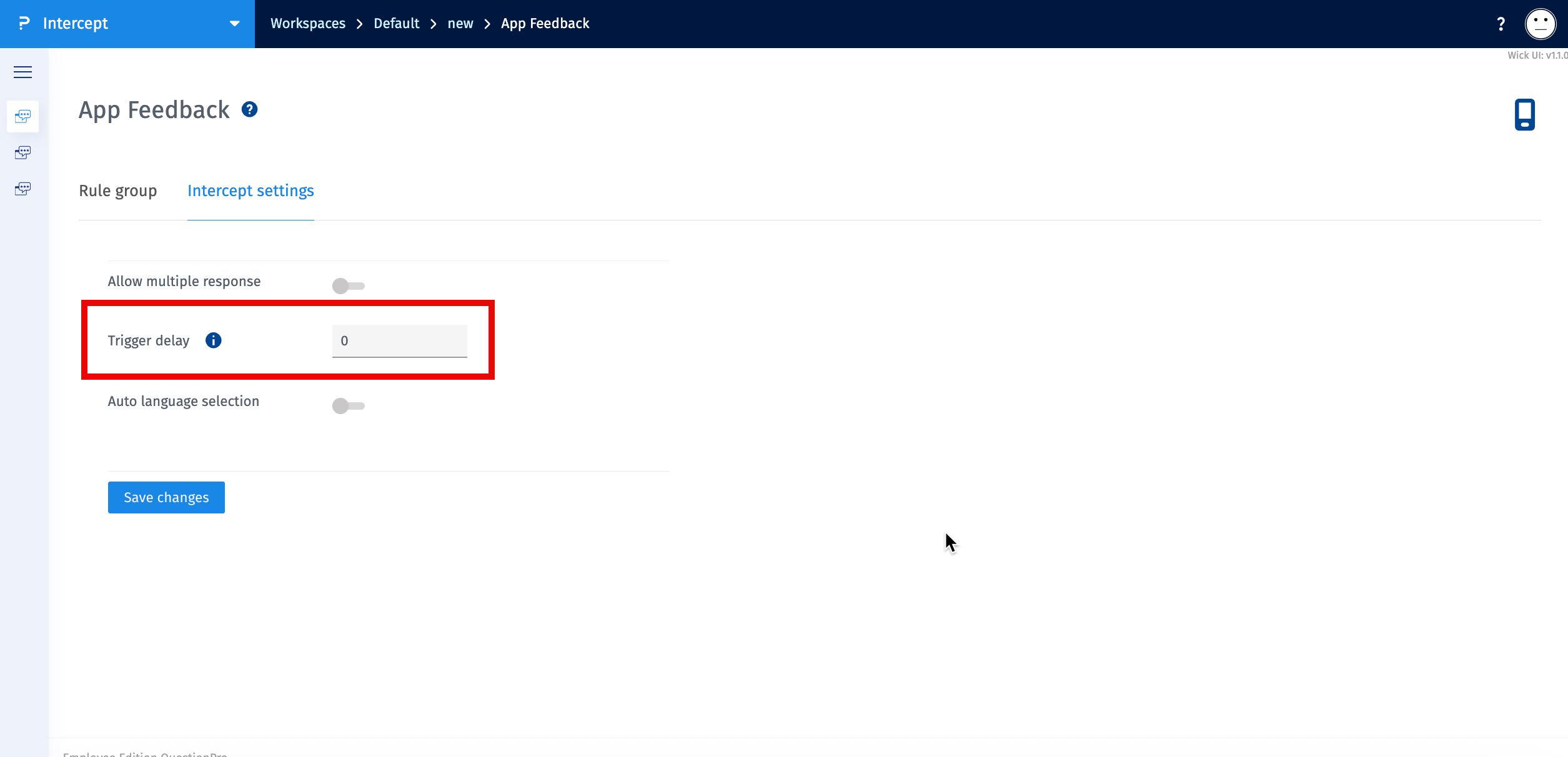
The Trigger Delay setting allows you to set a time delay (in seconds) before the intercept appears after a visitor lands on your website.
- Go to the Intercept Settings tab for your intercept
- In the Trigger Delay field, enter the number of seconds you’d like to delay the intercept popup
- Click Save Changes
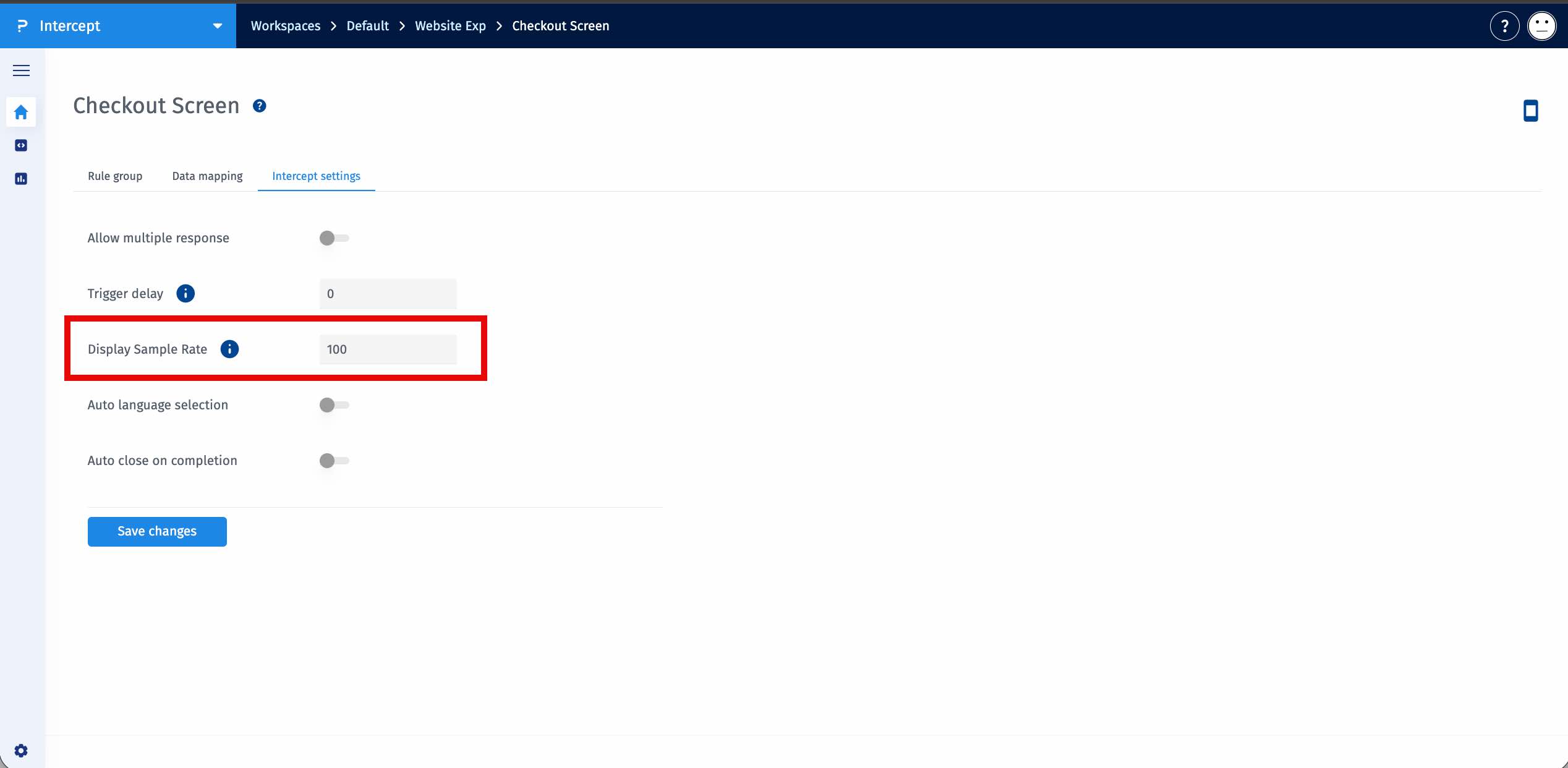
The Display Sample Rate setting lets you control how often a mobile intercept is shown to eligible users. It defines the percentage of users who meet your targeting rules and will actually see the intercept. This helps prevent over-surveying, protects the mobile experience, and allows you to manage response volume or run controlled experiments.
- Go to the Intercept Settings tab for your intercept
- In the Display Sample Rate field, enter the percentage of eligible users who should see the intercept
- Click Save Changes
- Start with a lower sample rate (for example, 10–20%) during testing phases.
- Gradually increase the rate after validating performance and user experience.
- Combine Display Sample Rate with targeting rules for precise survey distribution.
- Use sampling to avoid interrupting too many user sessions in high-traffic areas of your app.
The Mobile Intercept SDK supports language-specific intercepts that automatically localize the survey experience based on the mobile device’s language settings.
If a translation for the detected language is available in the survey, it will be used. Otherwise, the intercept defaults to English.
This ensures that users receive surveys in their preferred language, enhancing engagement and response quality.
- The SDK reads the mobile device's default language (e.g., fr for French).
- If the corresponding translation is present in the survey, the intercept will be shown in that language.
- If no translation is available, the SDK displays the intercept in English.
Example: If a user's phone is set to Spanish and the survey has a Spanish translation, the intercept will be presented in Spanish.
- Log in to your admin dashboard and navigate to the Intercept Settings.
- Toggle the option Enable Language-Specific Intercepts to ON.
- Click Save Changes to apply the setting.
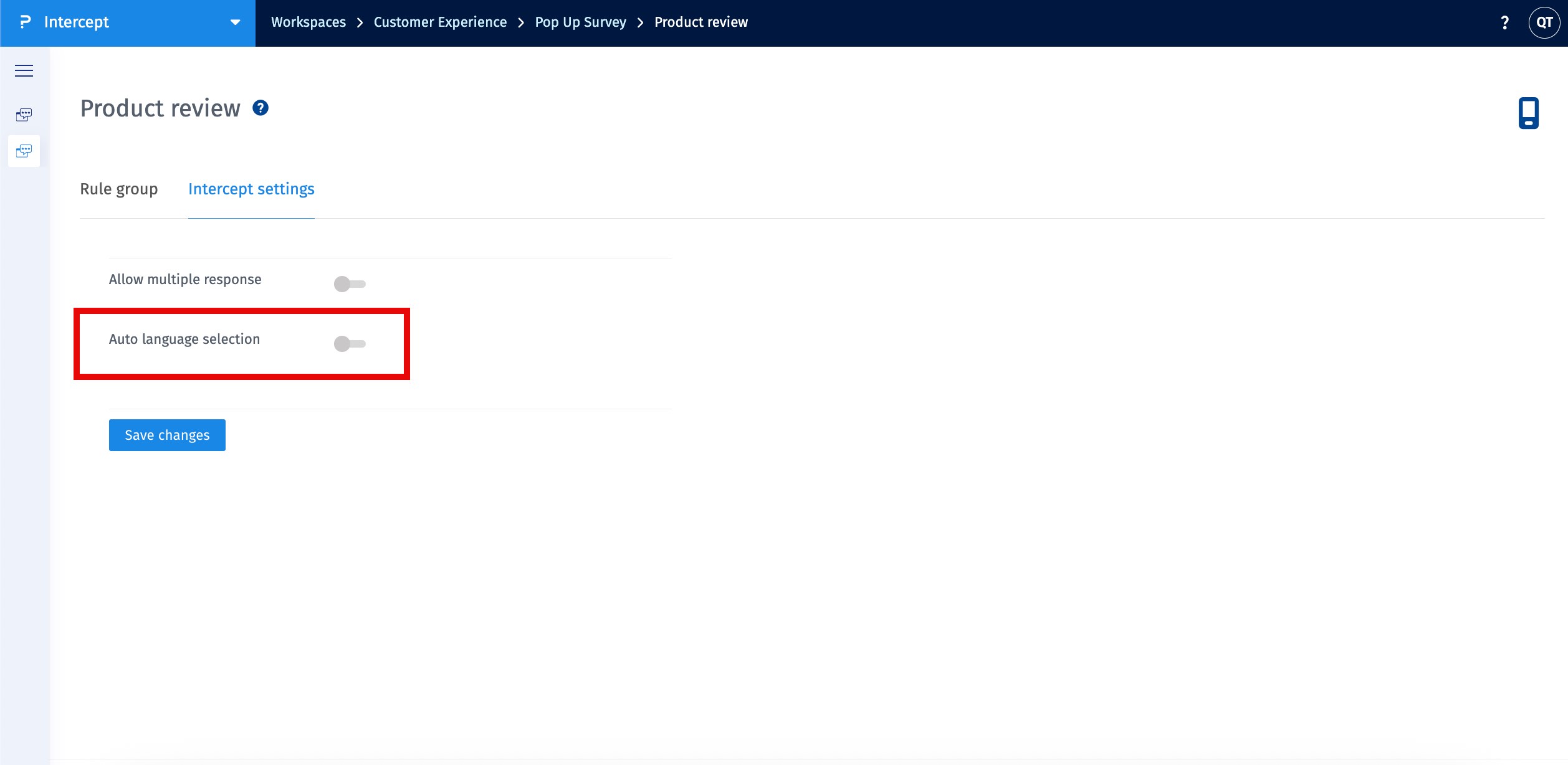
Once enabled, the SDK will automatically handle language selection at runtime.
- The associated survey must include all necessary language translations.
- Translations should be reviewed and validated for accuracy.
- To learn how to add and manage translations, refer to: How to Create Multilingual Surveys
