


Audience Templates
Audience Templates help you quickly apply a predefined set of audience qualifications without manually selecting criteria every time.
Click to download the videoThere are two types of templates:
-
Default Templates
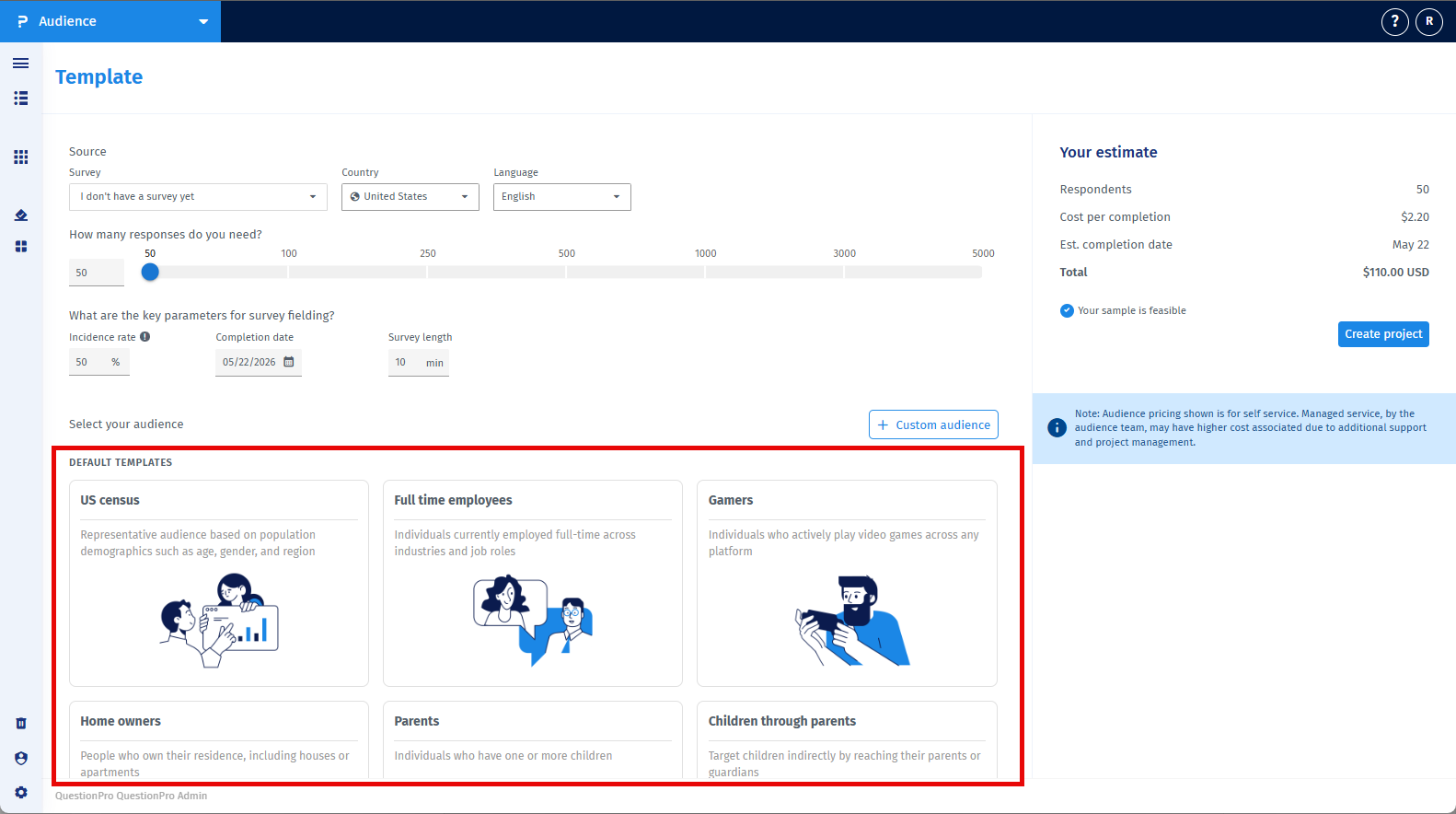
System‑provided templates based on common market research audiences, including:- Census
- Home Owners
- Gamers
- Full‑Time Employee
- Parents
- Children through Parents
-
My Templates
Custom templates created and saved by you for frequently used audience criteria.- Create your own templates.
- Reuse them across projects.
- Edit, rename, or delete them anytime.
- Navigate to the first page of Create Project.
- In the Templates section you will see the list of available Default Templates.
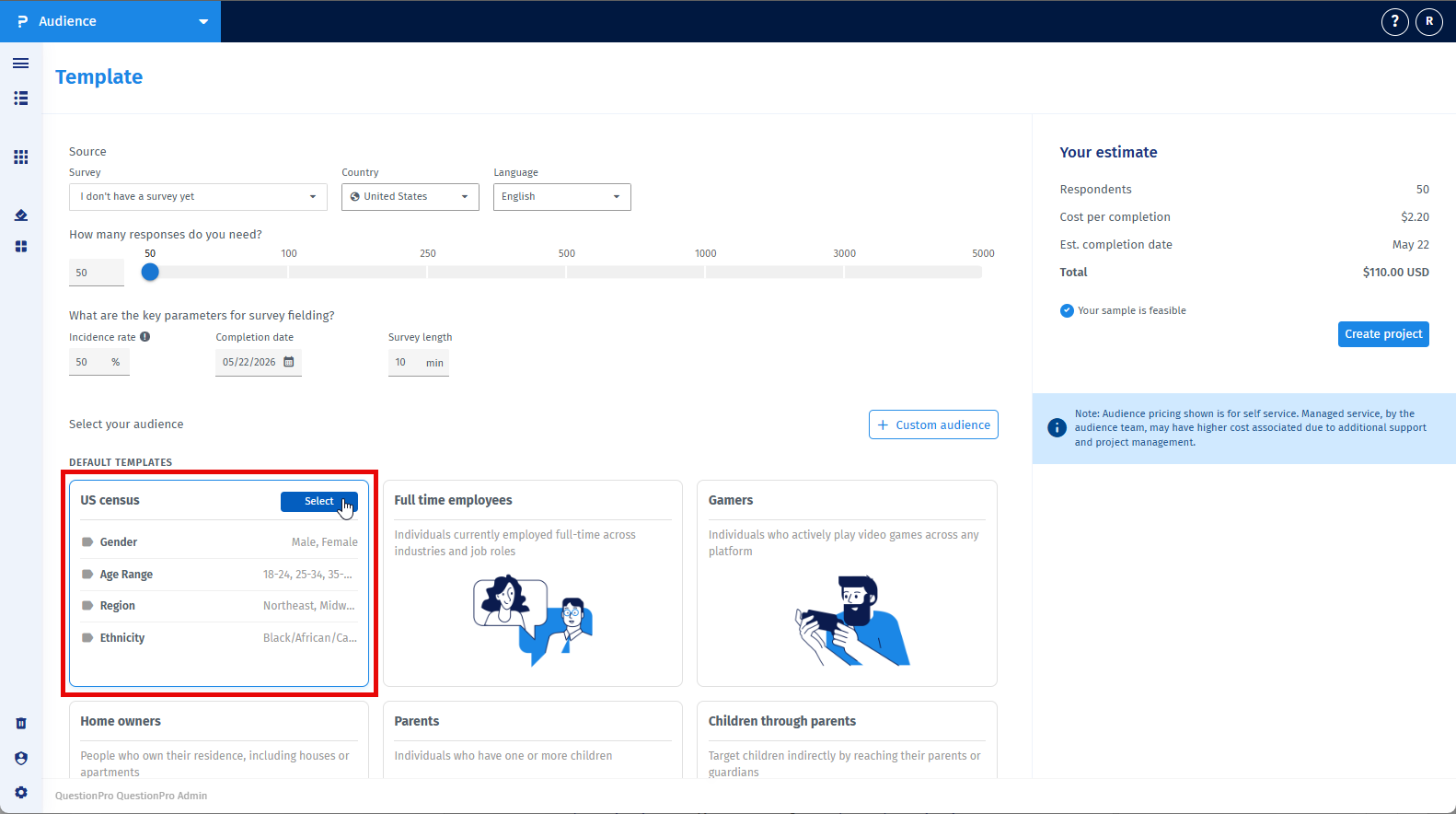
- Hover over a template card to:
- View the qualification criteria included in the template.
- Access the Select button.
- Click Select to apply the template.
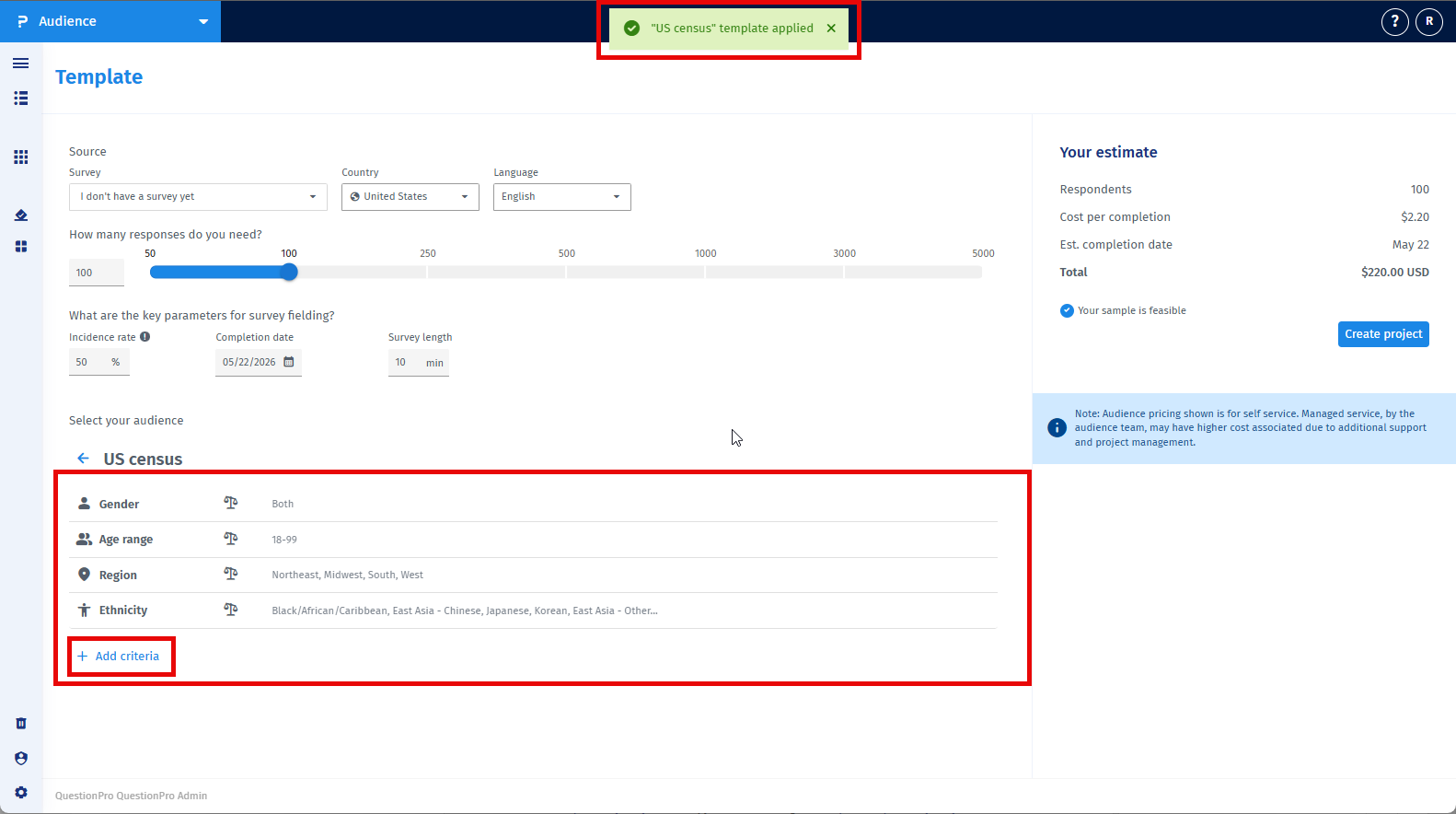
Once applied:
- All template criteria automatically populate in the audience qualification section.
- You can still add or remove criteria based on your project needs.
- Changes made after applying will not modify the original default template.
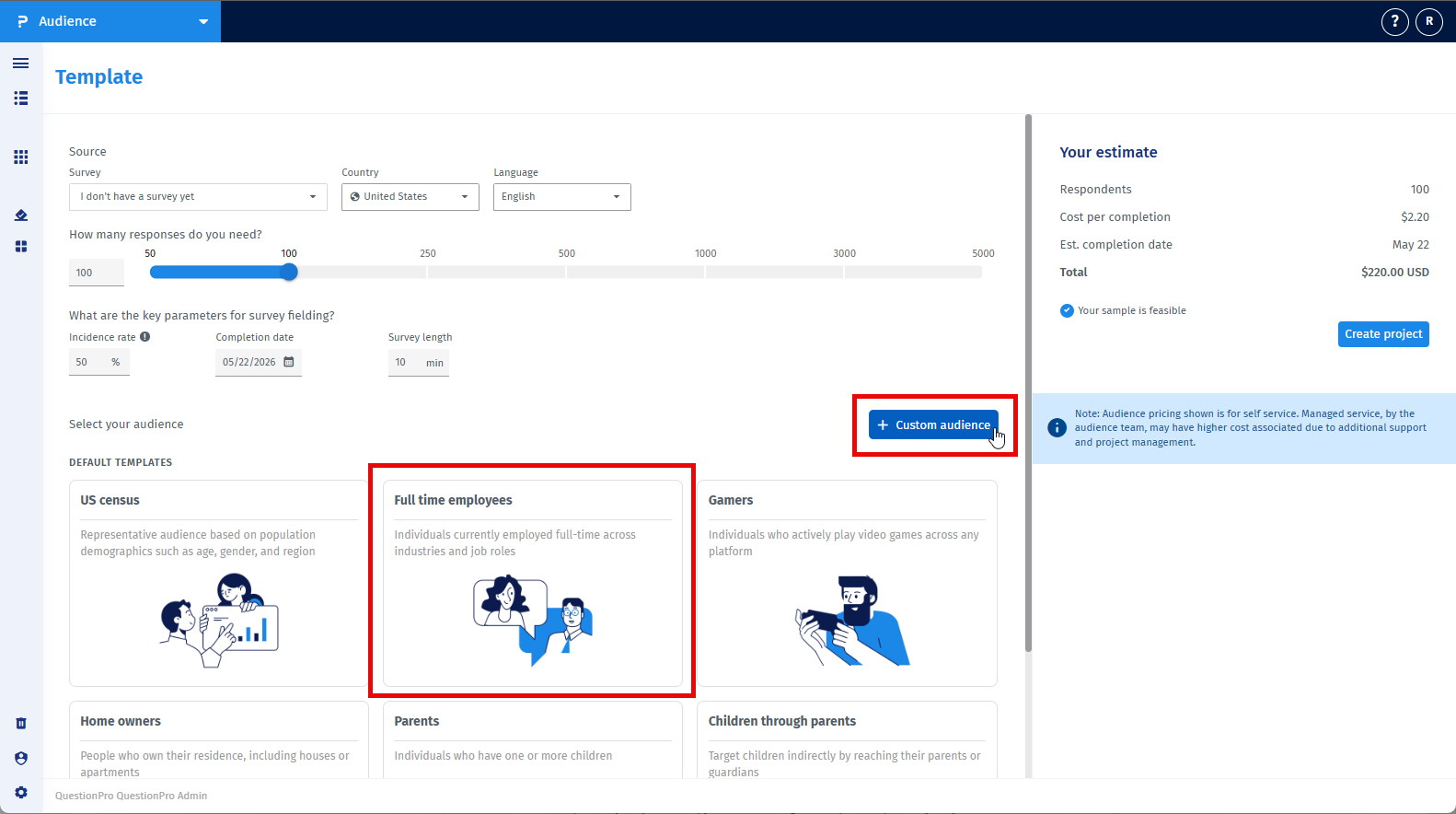
You can create a custom template in two ways:
- By building a custom audience from scratch.
- By starting with a default template and modifying it.
Steps to create a Template:
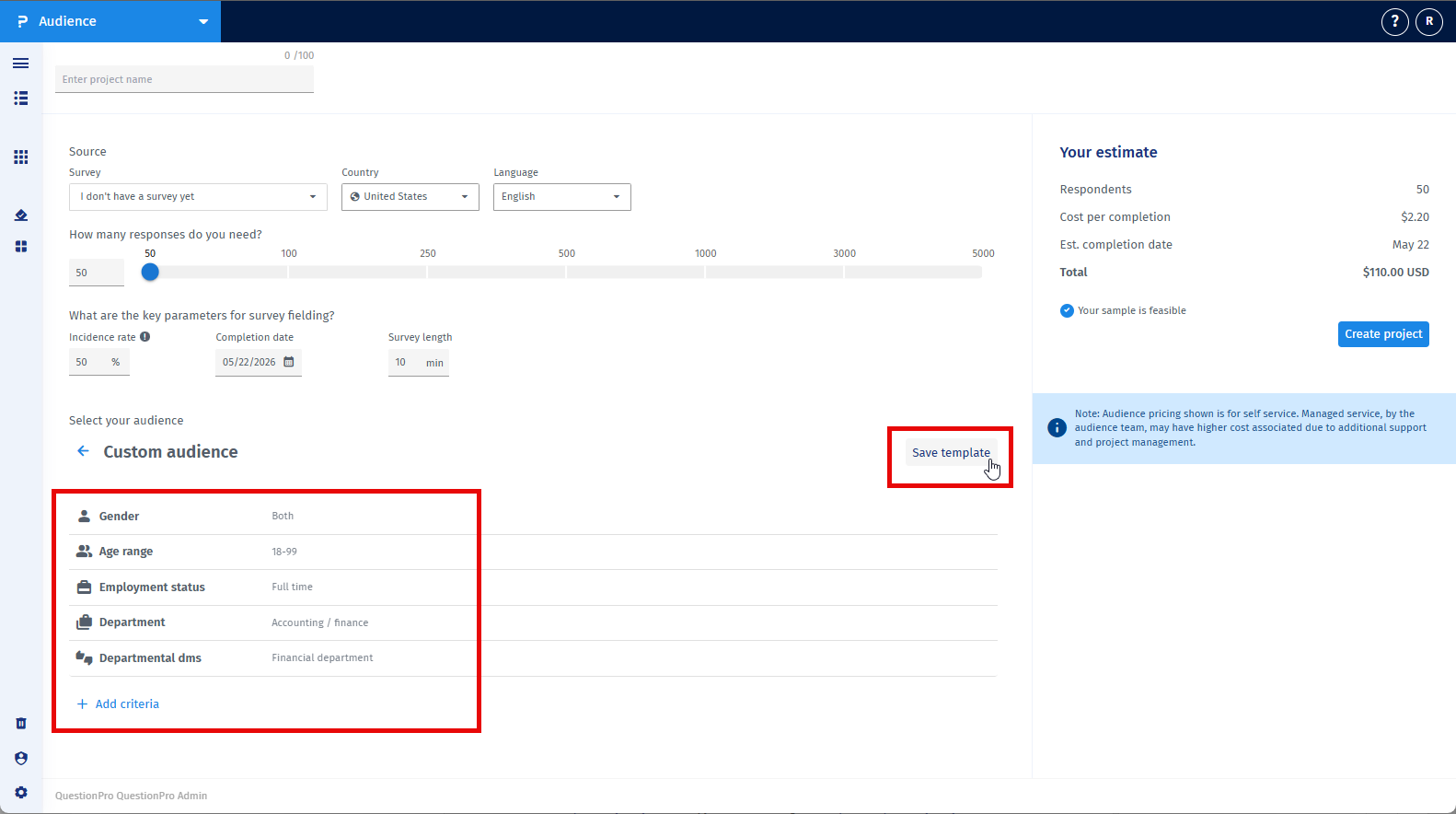
- Add audience qualification criteria manually or apply a default template.
- Customize the criteria based on your frequent use case.
- Click the Save Template button.
- Enter a template name when prompted.
- Click the Check/Save button.
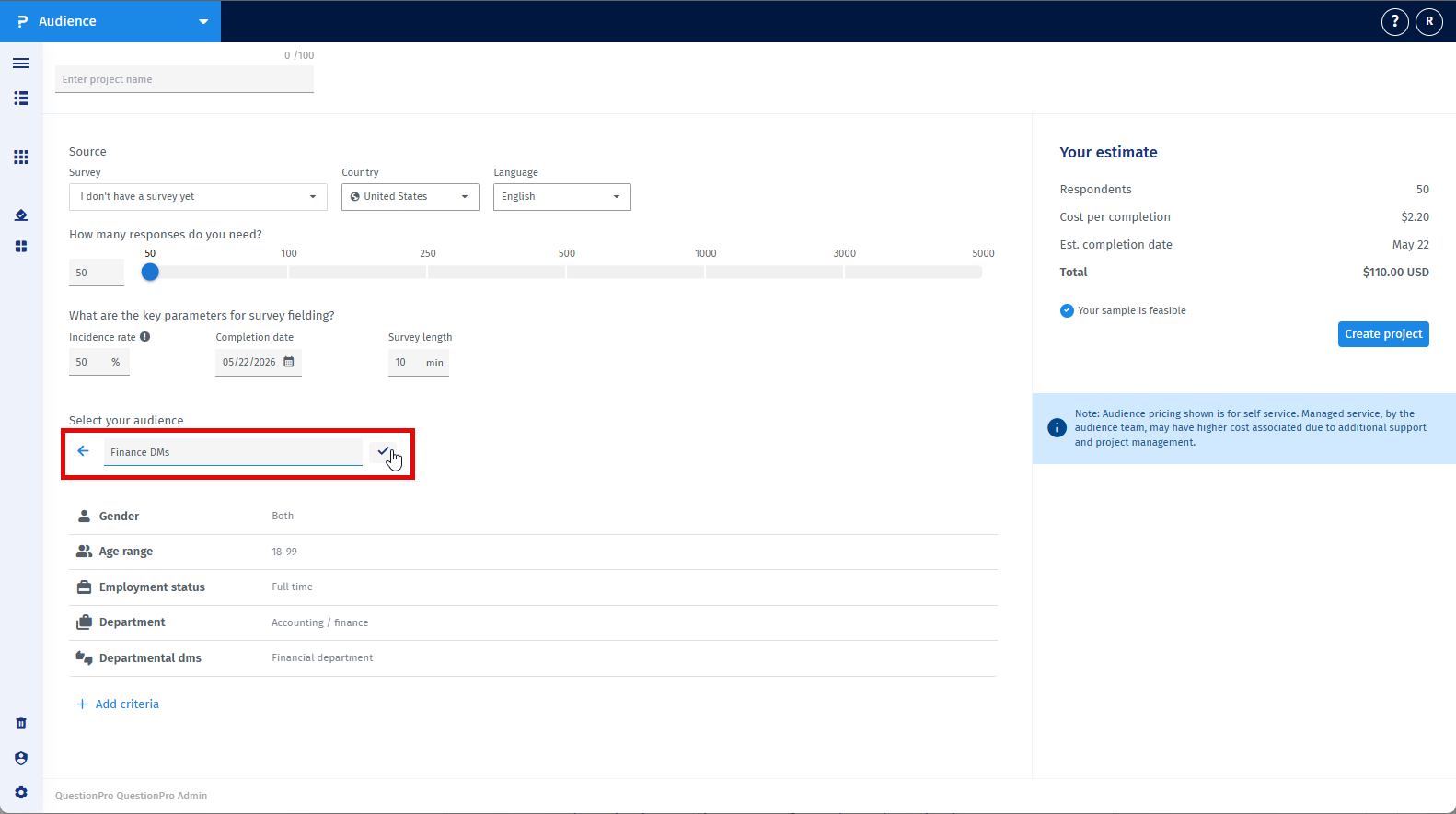
The system will save your template successfully.
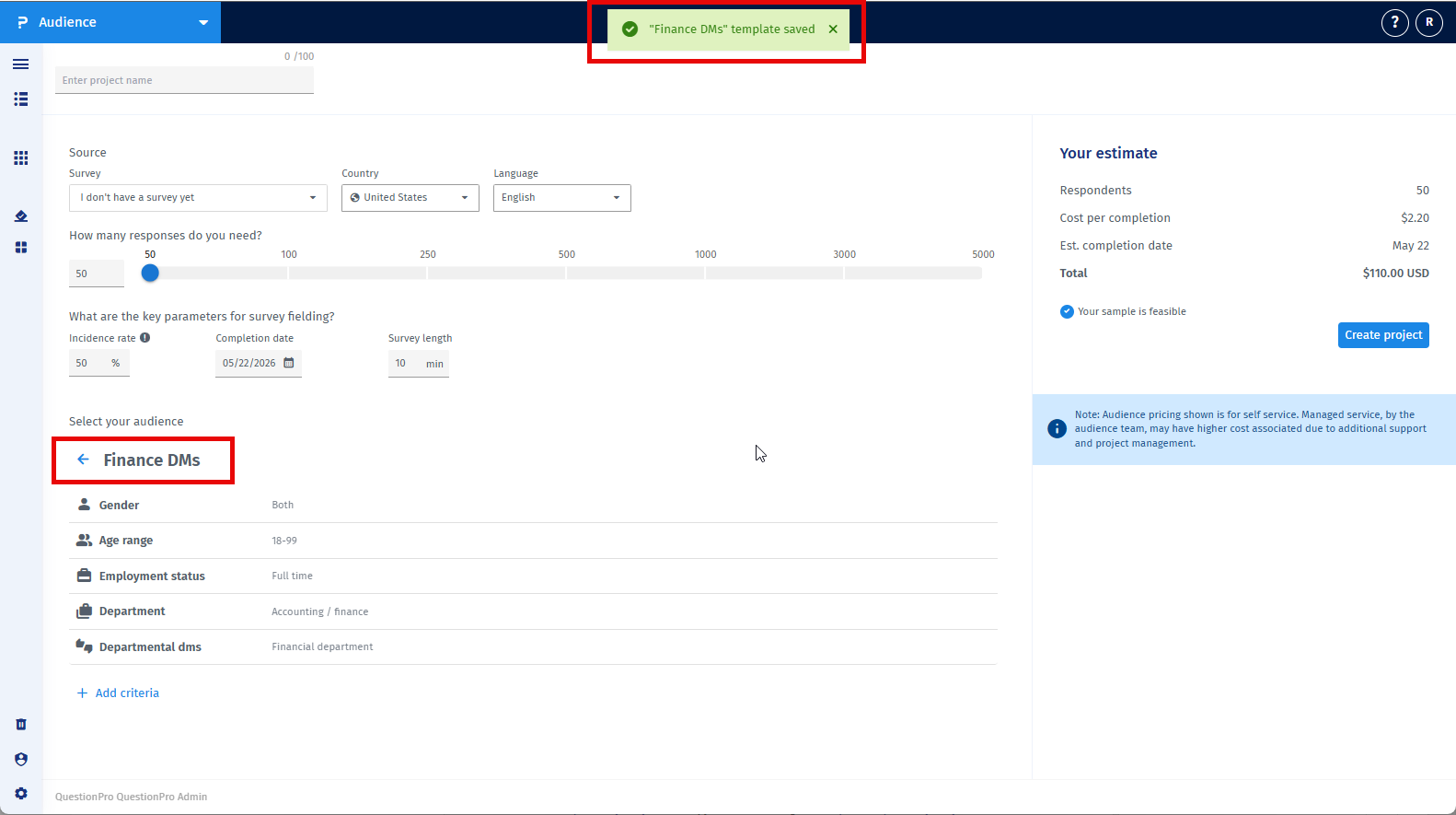
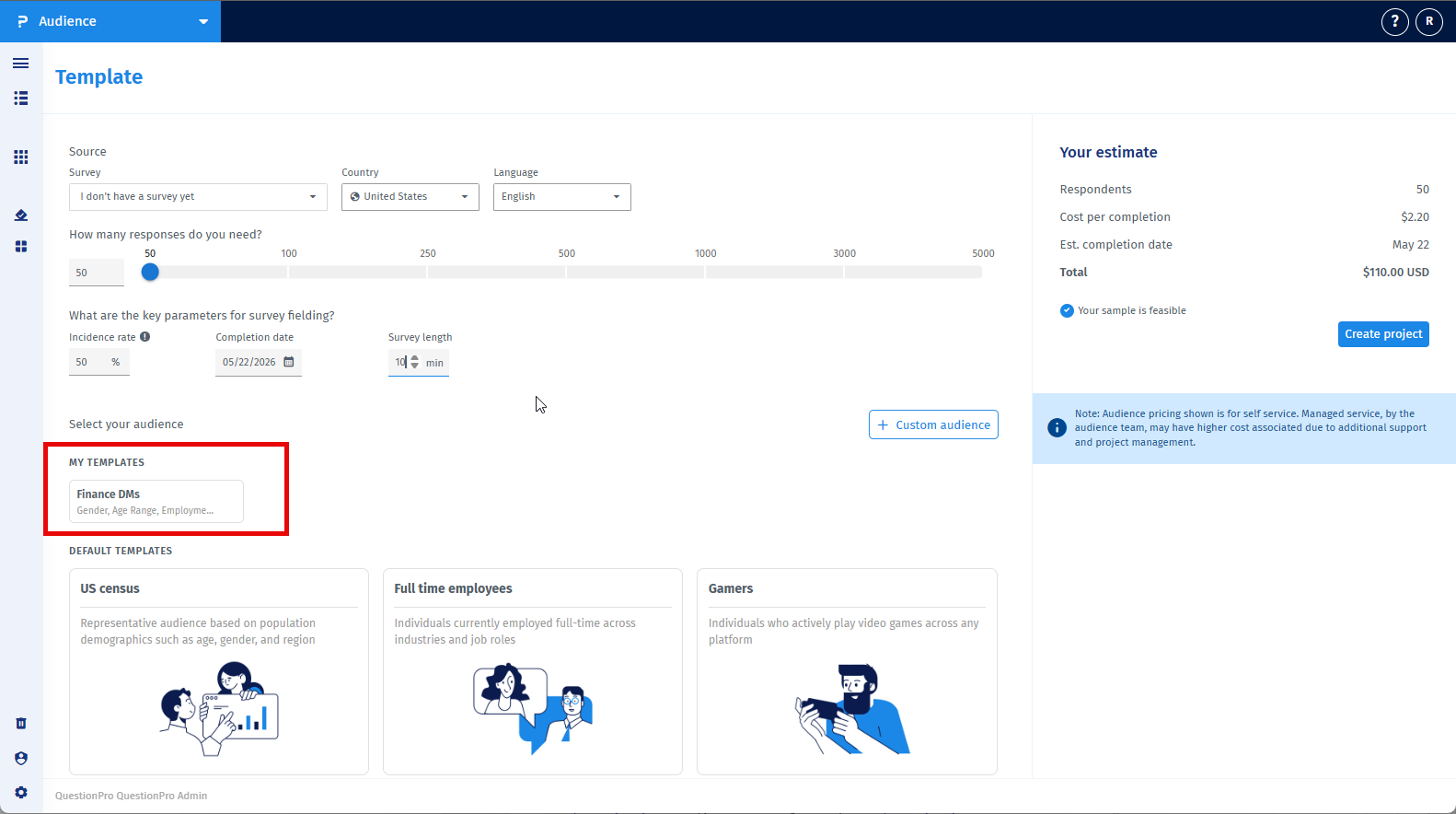
Once saved:
- Your template will appear under My Templates.
- My Templates are displayed at the top of the template list.
- Default Templates will appear below them.
Yes, you can manage and edit your saved templates anytime.
How to manage My Templates:
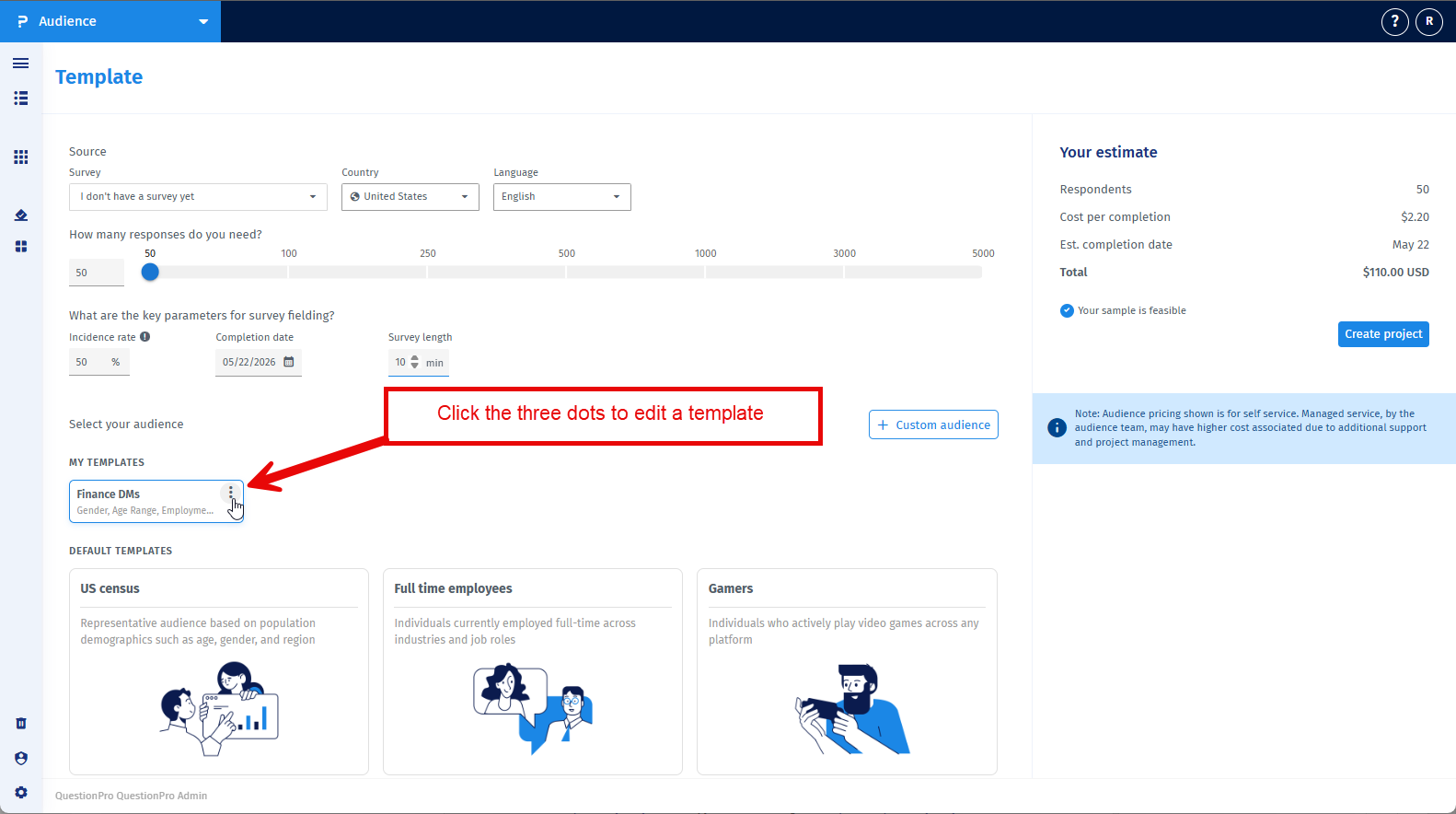
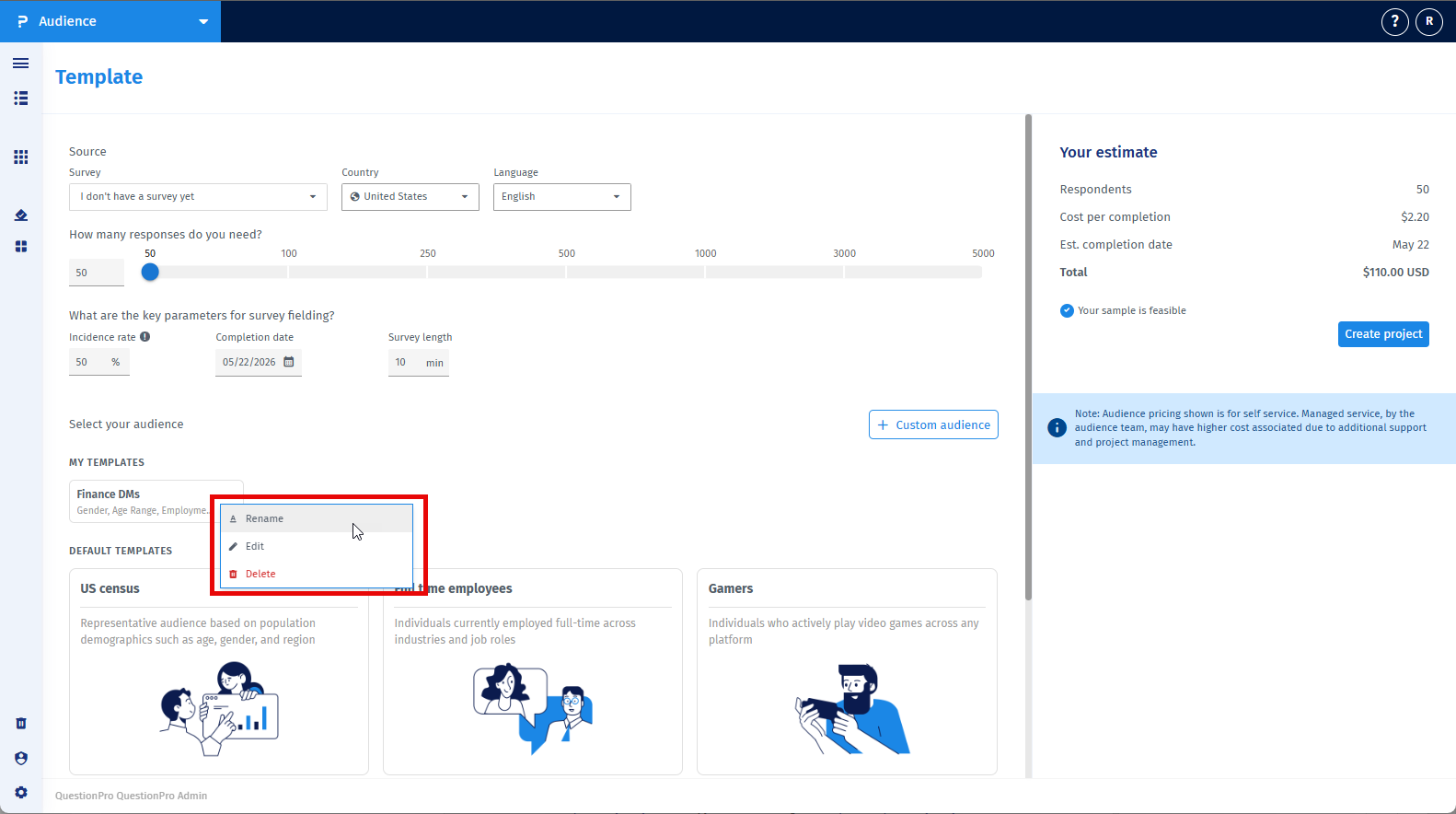
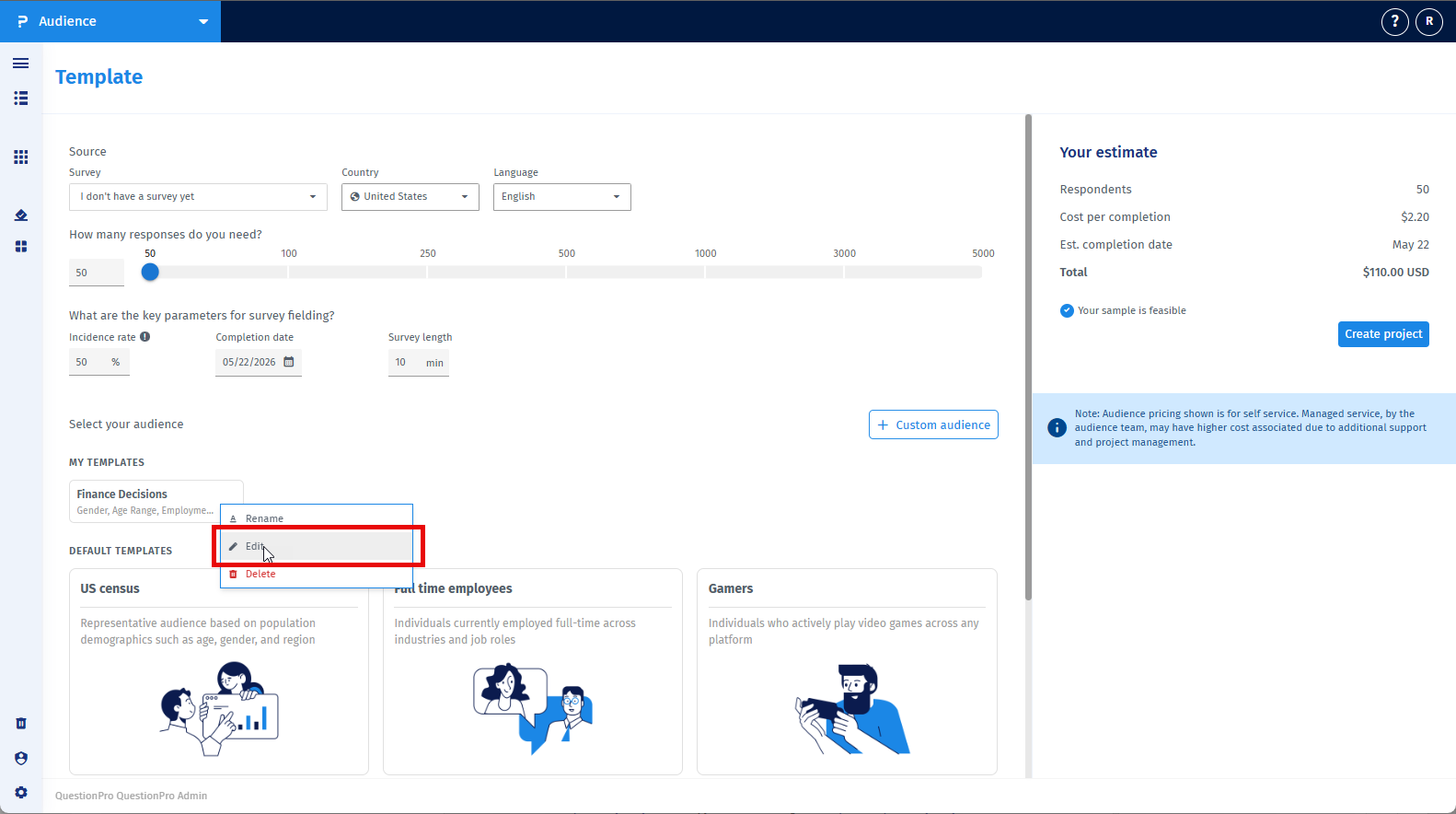
- On each template card, click the three‑dots menu to access the following options:
-
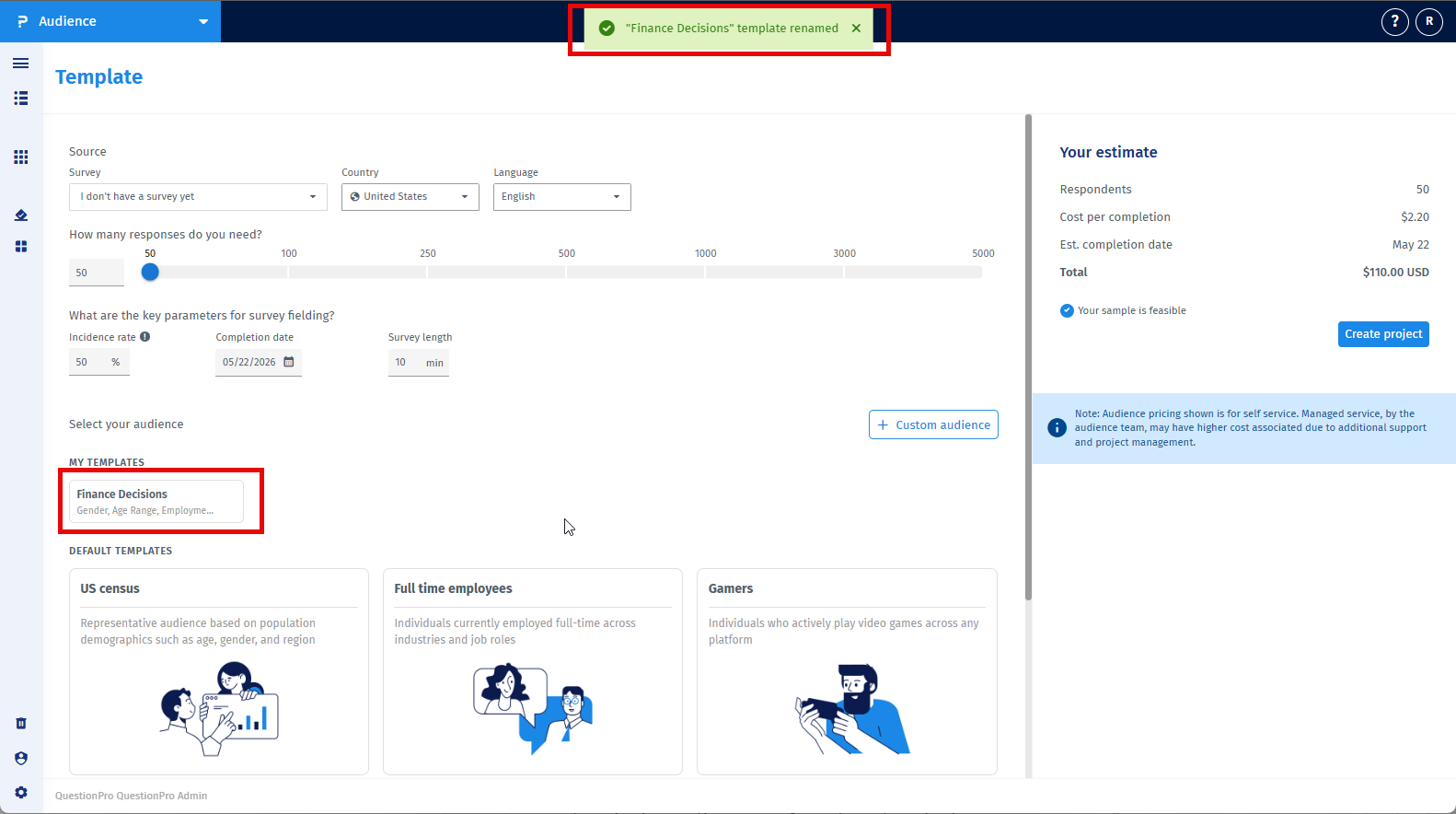
Rename
Allows you to change the template name.
-
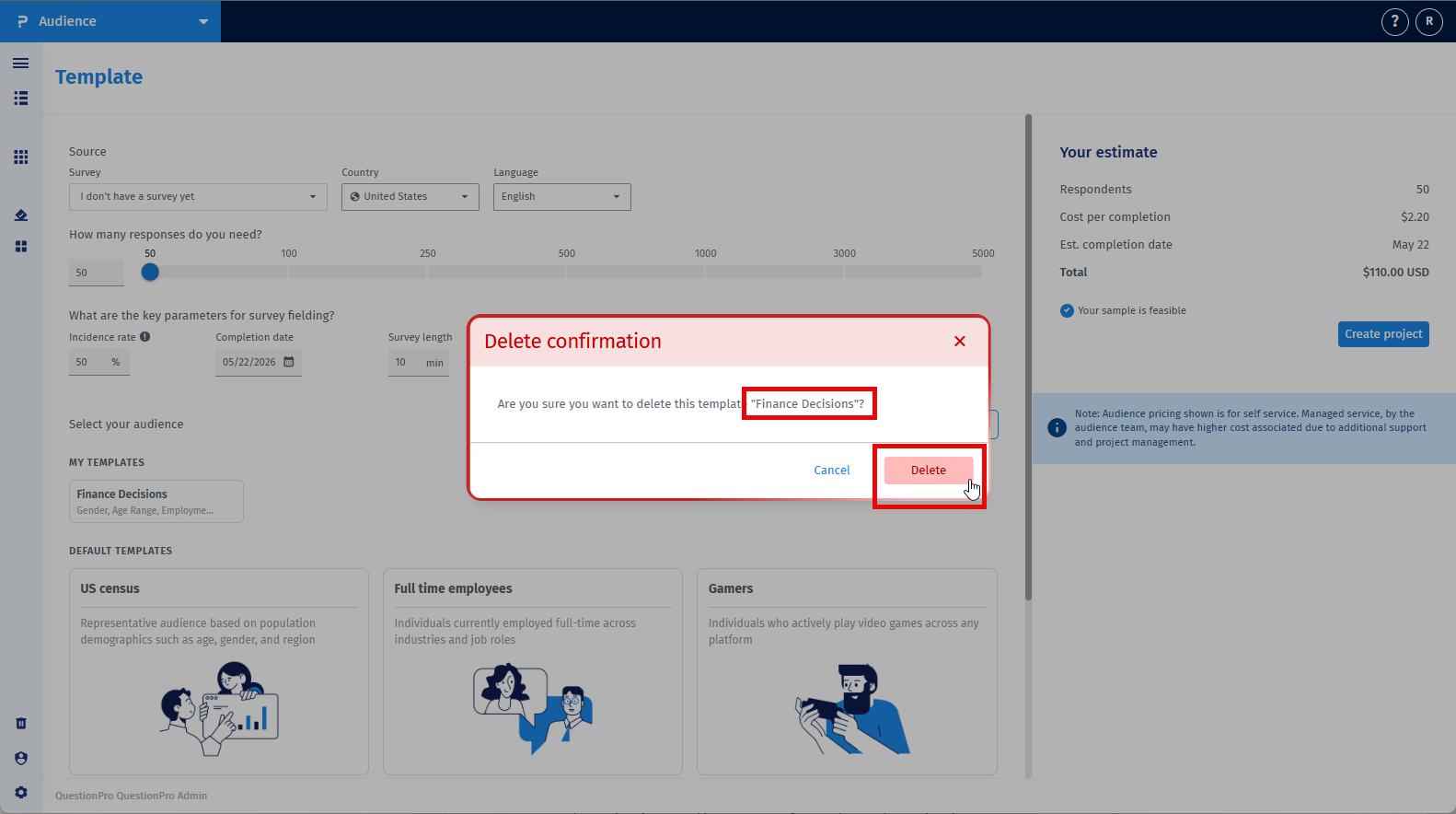
Delete
Removes the template permanently from your saved templates.
-
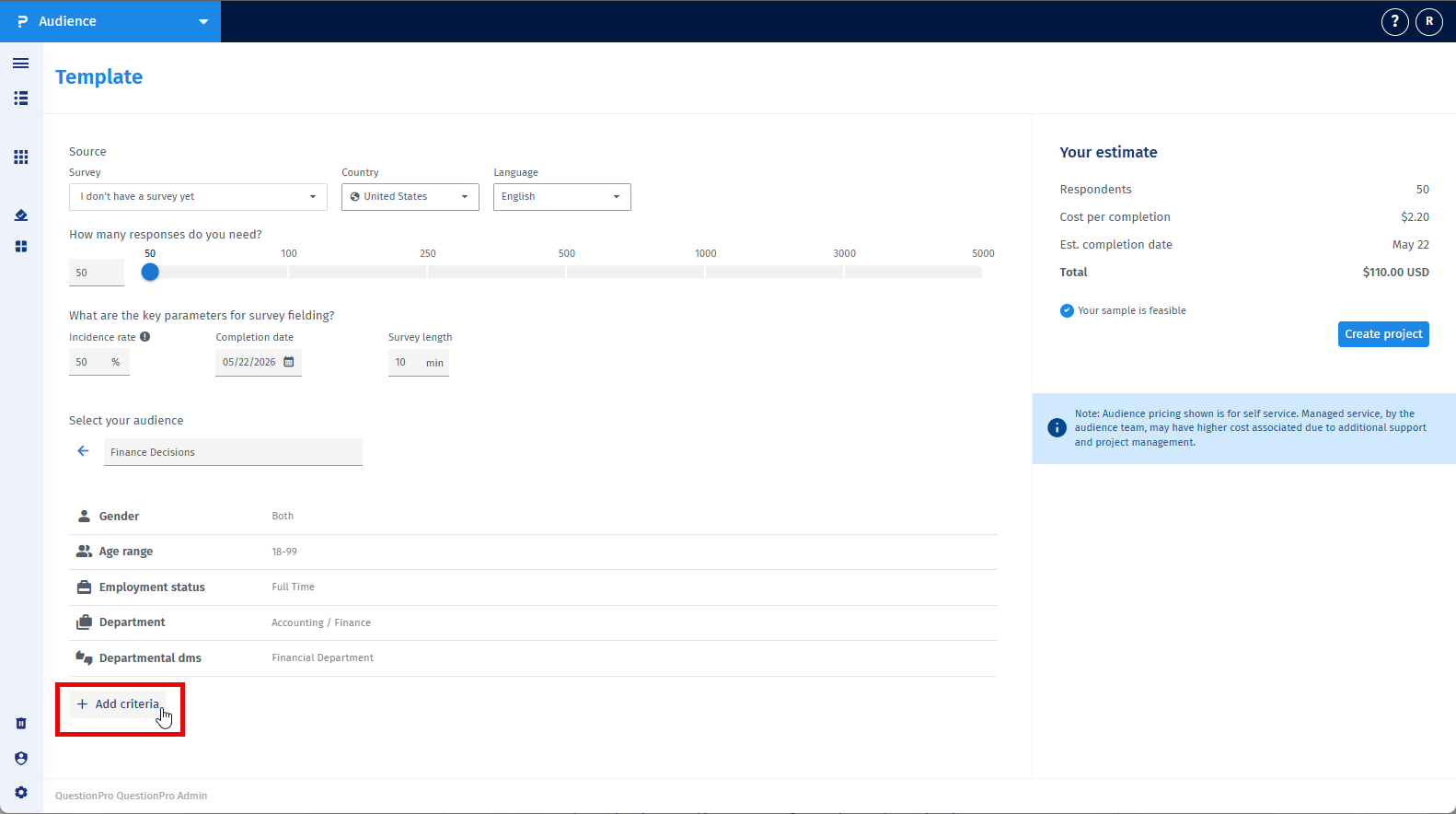
Edit
Applies the template so you can:
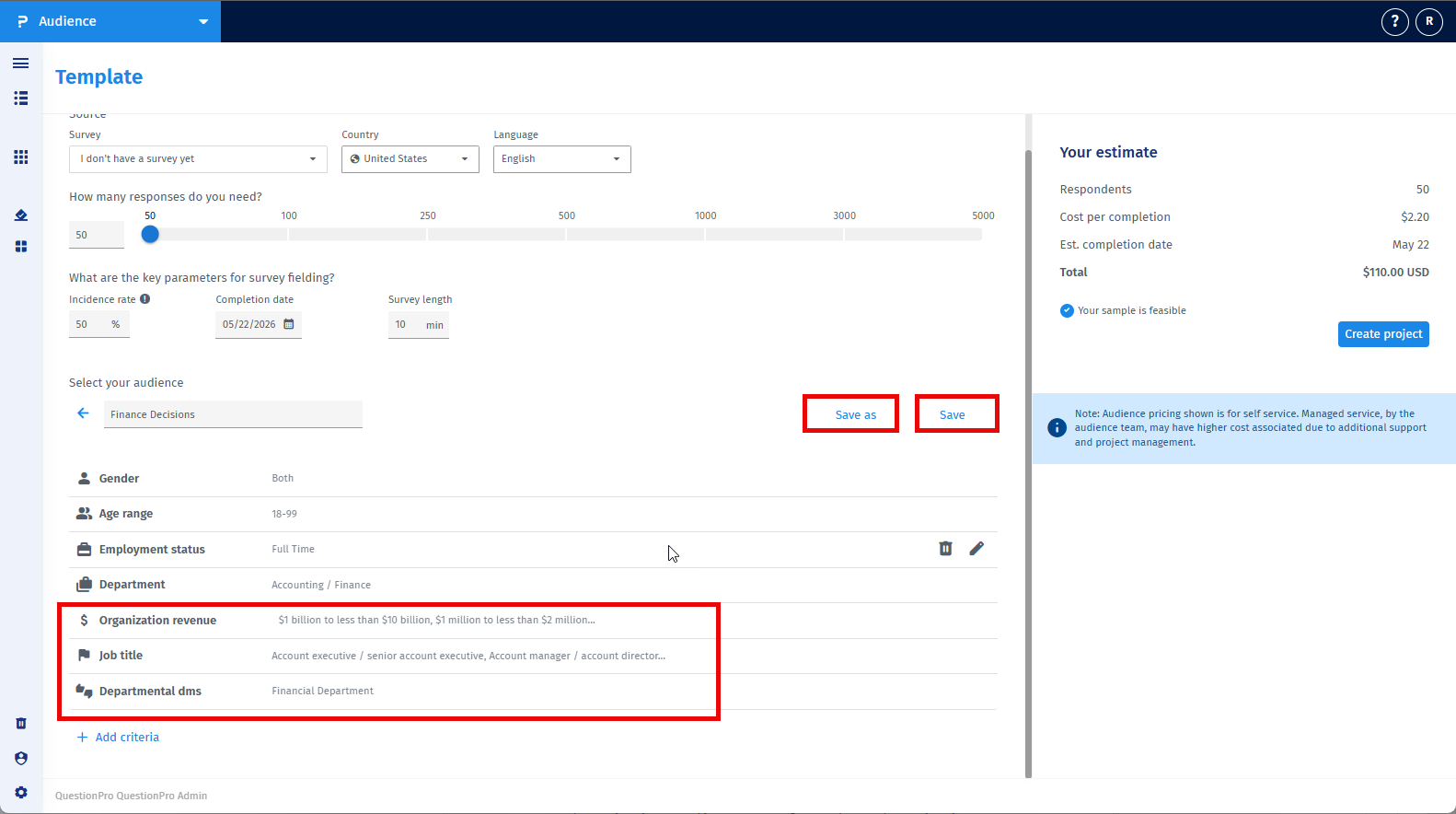
- Add new criteria.
- Remove existing criteria.
- Update audience logic.
- Save the changes to the same template, or
- Save it as a new template.
Note: Editing a saved template does not impact any projects where the template was previously used.
- My Templates are visible only if you have saved at least one template.
- If no custom templates are available, only Default Templates will be shown.
- Changes made after applying a template only affect the current project unless explicitly saved again as a template.
-
Can I modify criteria after applying a template?
Yes. You can freely add or remove criteria after applying a template. -
Will modifying a template affect the original default template?
No. Default templates remain unchanged. -
Can I save multiple templates?
Yes. You can create and save multiple custom templates. -
Where can I find my saved templates?
Your saved templates appear at the top of the Templates section on the Create Project page. -
Can I create a template using a default template?
Yes. You can apply a default template, modify it, and save it as your own custom template. -
Can I edit and save My Template after making changes?
Yes. You can update and save a My Template, but only the template owner can make and save modifications.
This feature is available with the following licenses :
Advanced Team Edition Research Edition Communities University - Research Edition
